A weekly tender watch in n8n that reports only what is new
Search public tenders for a keyword every week, compare with what an earlier run saw, and keep only the notices that are new. One Ahel step and three n8n steps.
Every Monday, this automation asks Ahel for public tenders published in the last 14 days that match a keyword in one country. It keeps only the notices no earlier run has seen, adds them to a table and reports how many are new, so a quiet week reports 0.
Download the workflow fileJSON and import it in n8n under Workflows, Import from File. How to add the Ahel node and its credential is in Start here.
Who it is for
You are building a bid tool, an alert for a sales team, or a feed inside your own product. Your users do not want the same 12 notices every Monday. They want the two that arrived since last week. The search is one Ahel step. The part that makes it useful is the pattern around it: run, compare with what is stored, keep the new.
The pattern
A search answers with everything that matches right now. A watch should answer with what changed. Between the two sits a memory of what you have already seen.
n8n has that memory built in. Its Remove Duplicates node can remember the values it saw in earlier executions of the same automation and let through only the ones it has not. So the search window can overlap on purpose. We search 14 days back every 7 days: a notice that is published late is still caught, and a notice found last week is never counted twice.
The steps

- Run now and Every Monday 08:00. A manual trigger for testing and a Schedule Trigger set to weeks, Monday, 8am.
- Keyword and country (Edit Fields) sets
countrytoEE,keywordtosoftware, andpublished_afterto 14 days ago. - Ahel: tenders runs the action
procurement.tenders.searchwithcountry,queryandpublished_afteras JSON arguments. Options: Max Results 25, Max Cost per Run 0.01, Tagn8n-tender-watch. - One item per notice (Split Out) splits
resultsinto one item per notice. - Only notices not seen before (Remove Duplicates) is the memory. Operation Remove Items Processed in Previous Executions, Keep Items Where Value Is New, Value to Dedupe On
{{ $json.notice_id }}, and a History Size of 10,000. - Drop the empty item (Filter) keeps only items that have a
notice_id. More on why below. - Shape the row (Edit Fields) turns lists into text, takes the first deadline, and adds a link to the notice, the keyword and
first_seen_on. - Add to tender_watch (Data table) inserts the new rows into the table
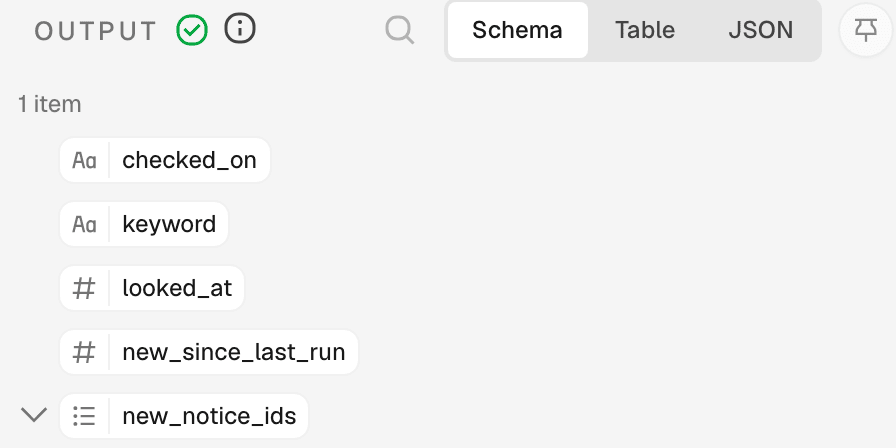
tender_watch. - Report what changed (Code) counts what reached it and answers with one item.
The report is plain JavaScript:
// Everything that reached this node is new since the last run.
const fresh = $input.all().filter((item) => item.json.notice_id);
return [{ json: {
  checked_on: $now.toISODate(),
  keyword: $('Keyword and country').first().json.keyword,
  looked_at: $('One item per notice').all().length,
  new_since_last_run: fresh.length,
  new_notice_ids: fresh.map((item) => item.json.notice_id),
} }];
What our runs returned
We ran it twice on 26 November 2026, a few seconds apart. The first run found 12 notices, all 12 were new, and the table got 12 rows. The second run found the same 12, Remove Duplicates let none through, and the report said 0 new.
The table's columns are notice_id, title, buyer, buyer_country, published, deadline, value (a number), cpv, notice_type, link, keyword and first_seen_on. Create the table with them before the first run, under Overview, Data tables.
What it cost and how long it took
On our run on 26 November 2026, each of the two runs cost $0.004. The first took 1.7 seconds and the second 1.6. That is one call to procurement.tenders.search, whatever the number of notices that come back. The second run cost the same as the first, because the search runs before the comparison. A search that matches nothing is not charged.
How to change it
- Another keyword. Change
keywordin Keyword and country. Titles are in English, so English words work. - Another country. Any two-letter code of an EU or EEA country.
- Another schedule. Change the Schedule Trigger, and keep the window longer than the gap between runs so late notices are still caught.
- Several keywords. Make one copy of the automation per keyword. Each copy has its own Remove Duplicates step, and so its own memory, and each run is one call.
- Start over. Run Remove Duplicates once with the operation Clear Deduplication History.
What to watch out for
- An empty item on a quiet week. Only notices not seen before has n8n's Always Output Data setting turned on, so the report runs even when nothing is new. On those weeks it passes one empty item down its Kept output. Drop the empty item stops it before the table, and the report ignores it too. Keep both if you build your own.
- The rows arrive as one item. The node returns one item per run, with all rows under
resultswhen there are two or more. With exactly one notice the row sits on the item itself, and with none,foundis false. Split Out depends on that array. - Max Results is a ceiling, and the node does not page. One run returns at most 100 rows, newest first. The action takes a
pageargument, and a page can hold fewer rows than you asked for, because rows that do not match are left out. Our run asked for 25 and got 12, so nothing was cut off. - 30 requests a minute. A workspace can send Ahel 30 requests a minute. The node spaces its own requests, so a weekly run with a few keywords stays well under it.
The same pattern works with any action that answers a list with a stable id. To find one for your tool, open the Catalog.